
How to Make a GIF from an MP4 Video
GIFs are still the fastest way to drop a reaction, a punchline, or a loop into a chat. Most of the time the source clip you have is an MP4 — a screen recording, a downloaded video, or something you shot on your phone. The good news: turning that MP4 into a GIF takes about ten seconds, and you don't need to install anything. I tested the most popular free MP4 to GIF converters and ranked them by speed, quality, and how badly they watermark your output.
Why convert MP4 to GIF?
MP4 is great for quality, but it's heavy and not every platform renders it inline. GIFs are the opposite: lower quality, but they loop automatically, play everywhere (Slack, Discord, docs, forums), and need no player controls. A 3-second reaction clip almost always works better as a GIF than as a video.
1. Make a GIF from MP4 with lowqualitymemes
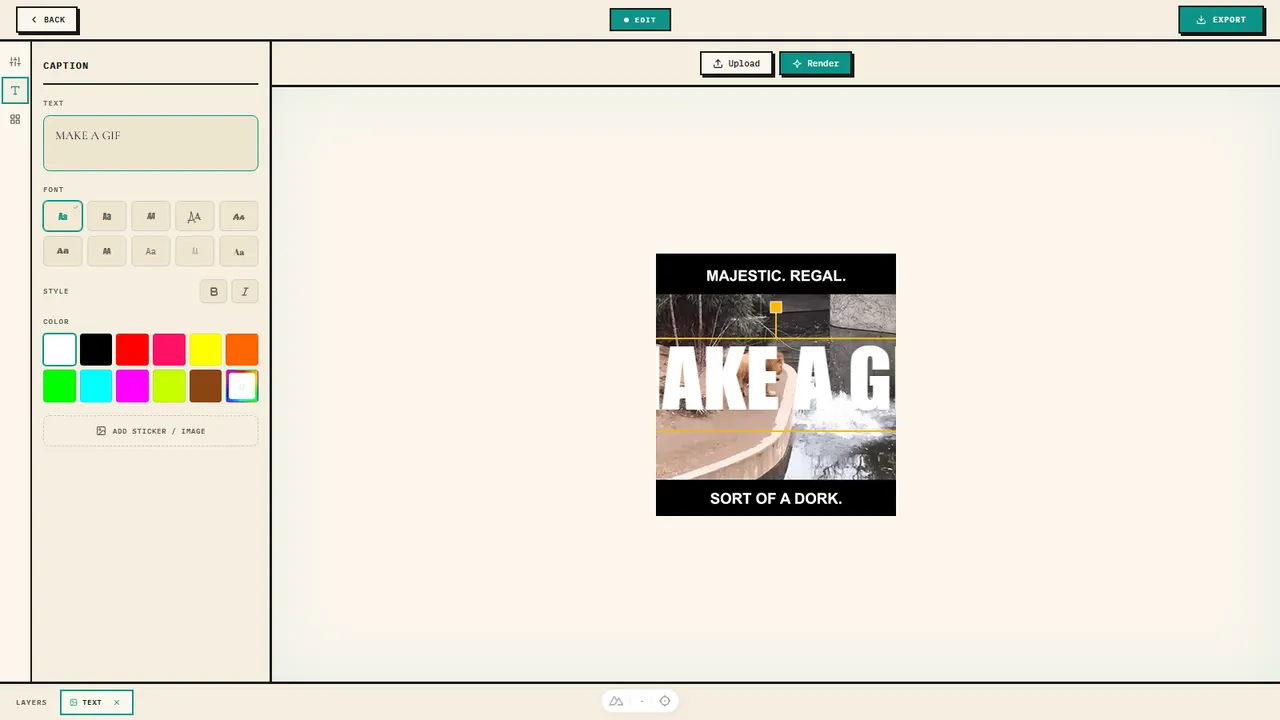
lowqualitymemes is built for GIFs and memes first, so the video-to-GIF flow is the smoothest of the bunch. Upload your MP4, pick the segment you want, and the editor lets you add captions, reduce the frame rate, and crush the file size — all in the browser, with no upload to a remote server and no watermark slapped on the corner.
To turn your MP4 into a GIF here:
1. Open the editor and drop in your MP4 (or paste a video URL).
2. Trim the clip to the 2–6 seconds you actually want to loop.
3. Adjust the size and FPS — for a reaction GIF, 480px wide and 10–15 FPS is the sweet spot between smooth and small.
4. Optional: add a caption, then drag the quality sliders if you want that crunchy, low-quality meme look on purpose.
5. Hit export and download your GIF.
2. Convert MP4 to GIF with Ezgif
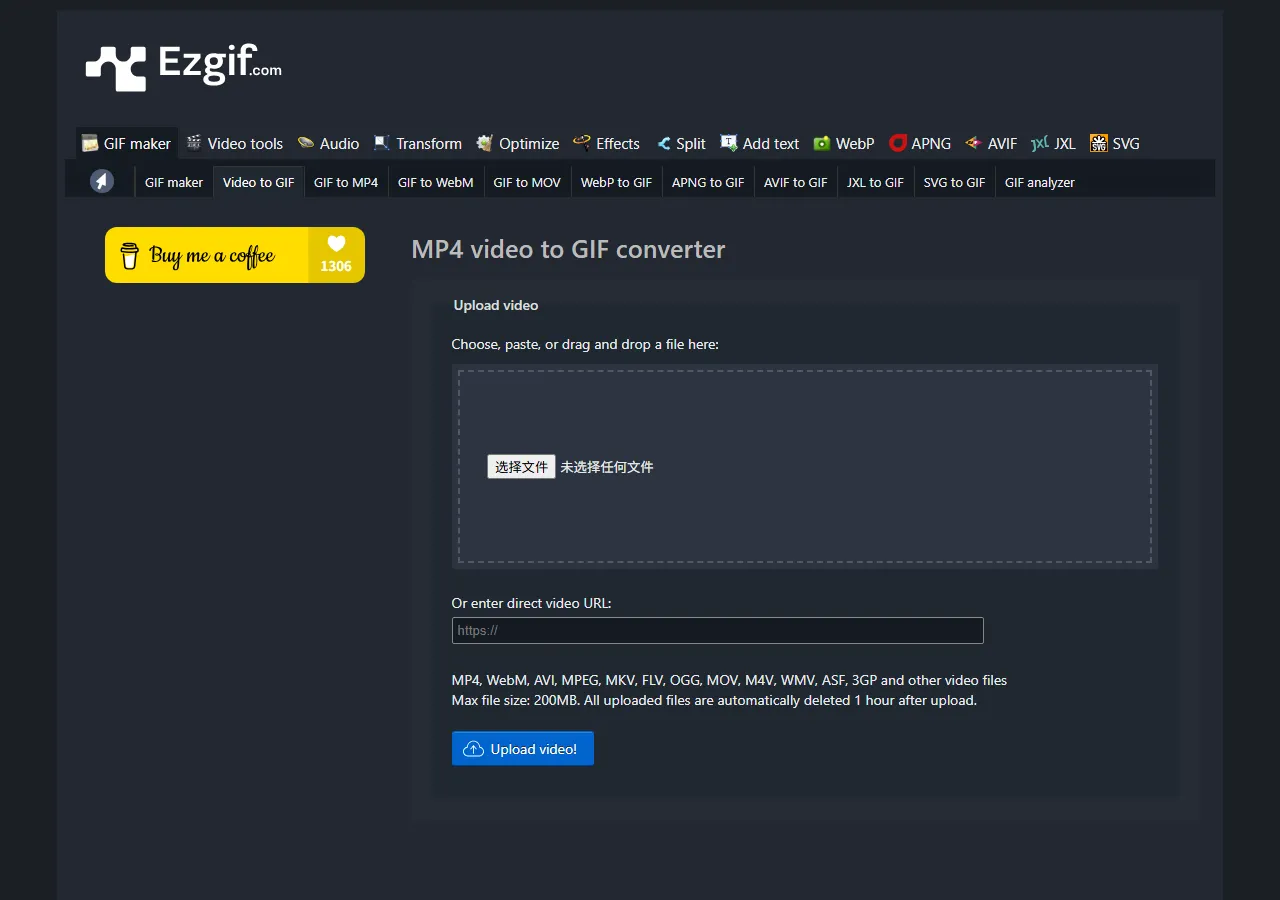
Ezgif is the old reliable of online video tools. Upload your MP4 (up to 100MB on the free tier), choose a start and end time, set the width and frame rate, and it spits out a GIF. It also has built-in tools to optimize and shrink the result, which most converters charge for. The interface looks like 2012, but it works.
3. Make a GIF with GIPHY GIF Maker
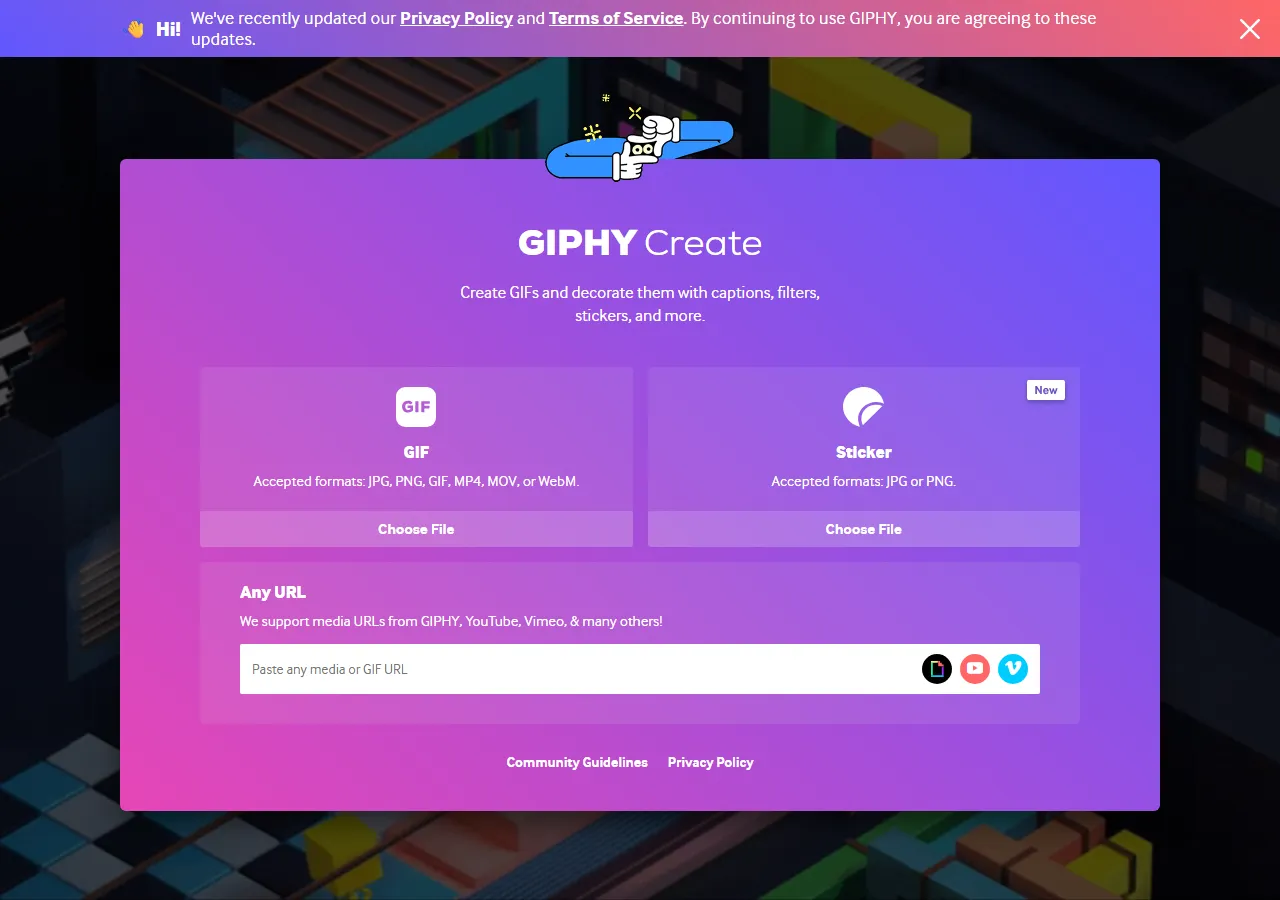
GIPHY's creator is the friendliest if you want to decorate the GIF with stickers, captions, and filters. Upload your MP4, trim, decorate, and it hosts the GIF on GIPHY for sharing — the trade-off is that the export quality is a little softer than Ezgif's, and it nudges you toward publishing publicly.
4. Turn a video into a GIF with MakeAGif
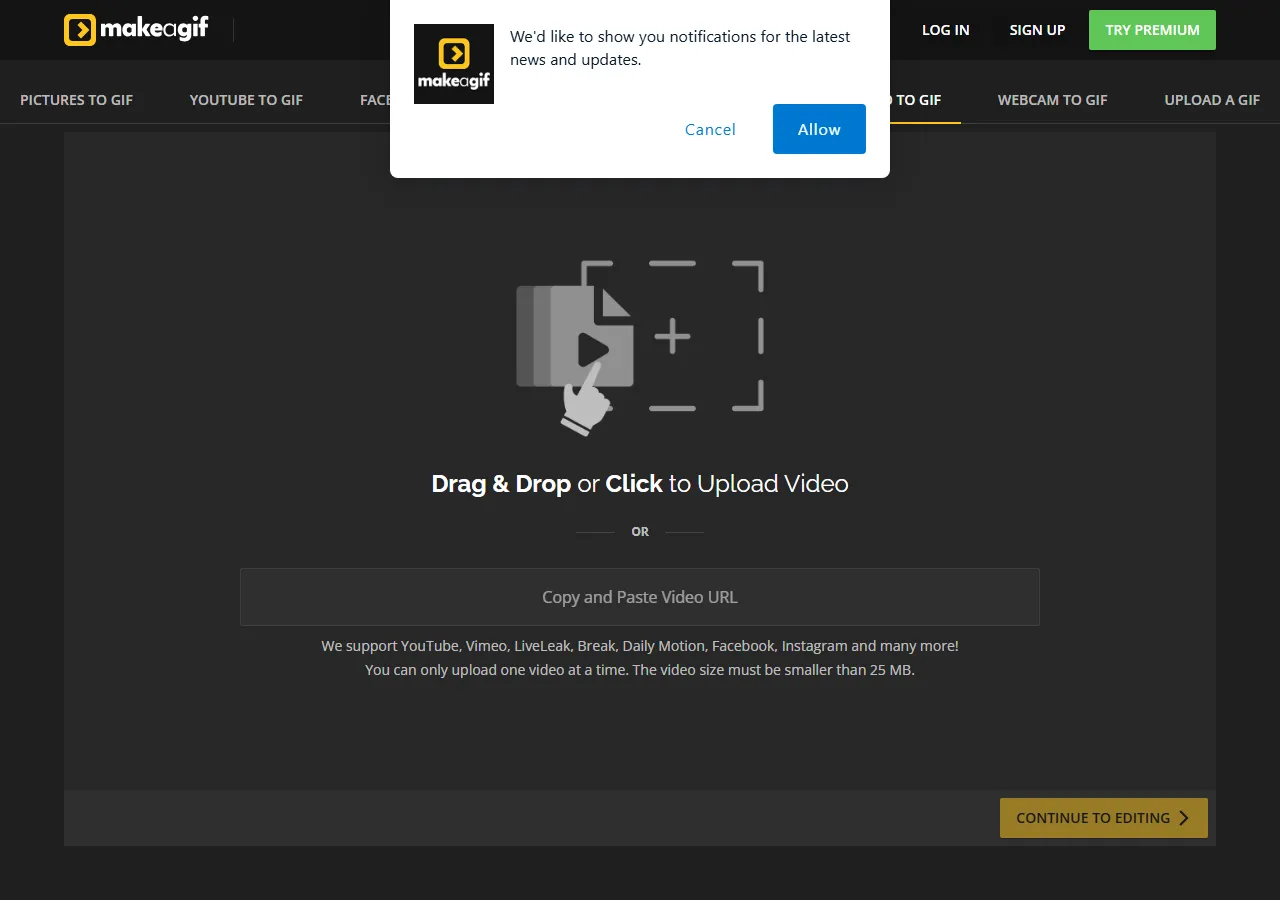
MakeAGif is a straightforward MP4-to-GIF builder. You upload a video (or paste a YouTube/URL), select the section, and it generates the GIF. It's a fine choice if you want a quick result from a video link without touching any settings, though the free tier does add branding.
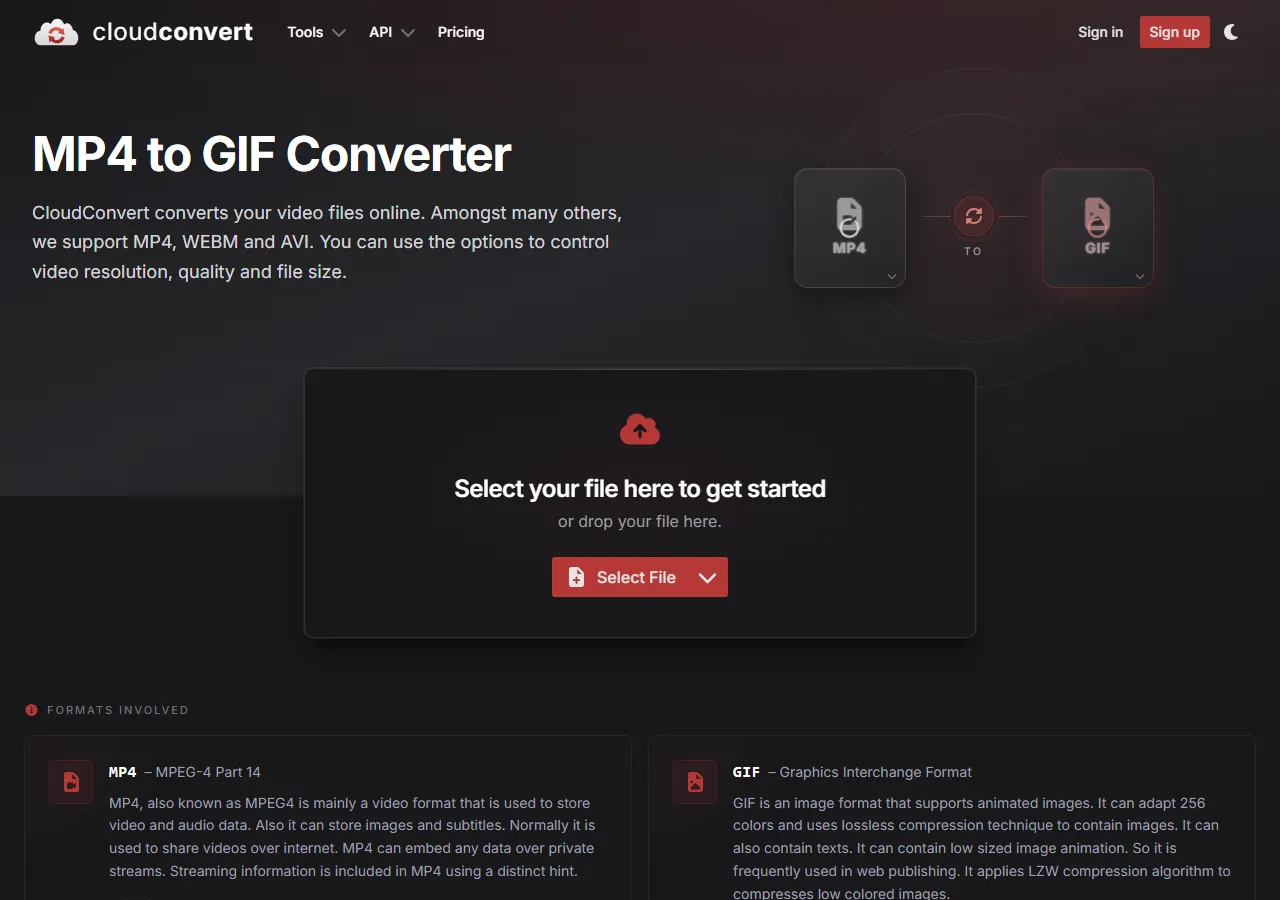
5. Convert with CloudConvert
CloudConvert is the "just convert it" option. No trimming UI, no captions — you hand it an MP4 and it gives you back a GIF with adjustable resolution and frame rate. Best when your video is already edited and you only need a format swap.
Tips for smaller, better GIFs
Keep it short. A GIF should loop in 2–6 seconds. Anything longer balloons the file size and kills the punchline.
Drop the frame rate. 10–15 FPS is plenty for a reaction. Going to 24+ FPS doubles the size for no visible gain.
Shrink the dimensions. 480px wide is enough for chat and social. Only go bigger if the detail actually matters.
Cut the colors. GIF supports up to 256 per frame — reducing the palette is the single biggest file-size win.
Conclusion
You don't need desktop software to make a GIF from an MP4. For memes and reactions, lowqualitymemes gives you the most control with zero watermark; for a quick conversion Ezgif is hard to beat; and if you want stickers and captions baked in, GIPHY is the pick. Pick the one that matches what you're trying to make.