
How to Make 8-Bit Pixel Art from Any Image
8-bit pixel art is the chunky, retro look pulled straight from NES and Game Boy screens — big blocky pixels, a tiny color palette, and that unmistakable vintage-game feel. You don't need to draw it by hand. Any photo can be pushed into 8-bit territory in a few seconds with the right converter. Here's how the look works and which tools do it best.
What is 8-bit pixel art?
"8-bit" refers to the era of hardware (NES, Master System, early home computers) that could only draw a small number of colors and worked in a low grid of visible pixels. Pixel art made for those machines had to be deliberate: every pixel counted, palettes were tiny (the Game Boy had four greens, the NES around 54 colors total), and shading was faked with a technique called dithering. When we turn a modern image "8-bit", we're recreating those constraints on purpose — pixelating it down and clamping it to a retro palette.
1. Make 8-bit pixel art with lowqualitymemes
Our Image to 8-Bit tool is tuned for the retro look specifically. Drop in an image, pick a pixel size (bigger blocks = chunkier), and the tool pixelates and re-palettes the result so it reads as a genuine 8-bit frame rather than just a blurry image. It runs entirely in your browser, no upload, no watermark.
To turn an image into 8-bit pixel art here:
1. Open the 8-bit converter and upload your image.
2. Choose a pixel block size — try 8–16 for sprites, larger for a chunky background look.
3. Pick a palette (NES, Game Boy, or a limited custom set) to clamp the colors.
4. Optional: enable dithering for shading with fewer colors.
5. Export and download your pixel art.
2. Convert images to 8-bit with img8bit
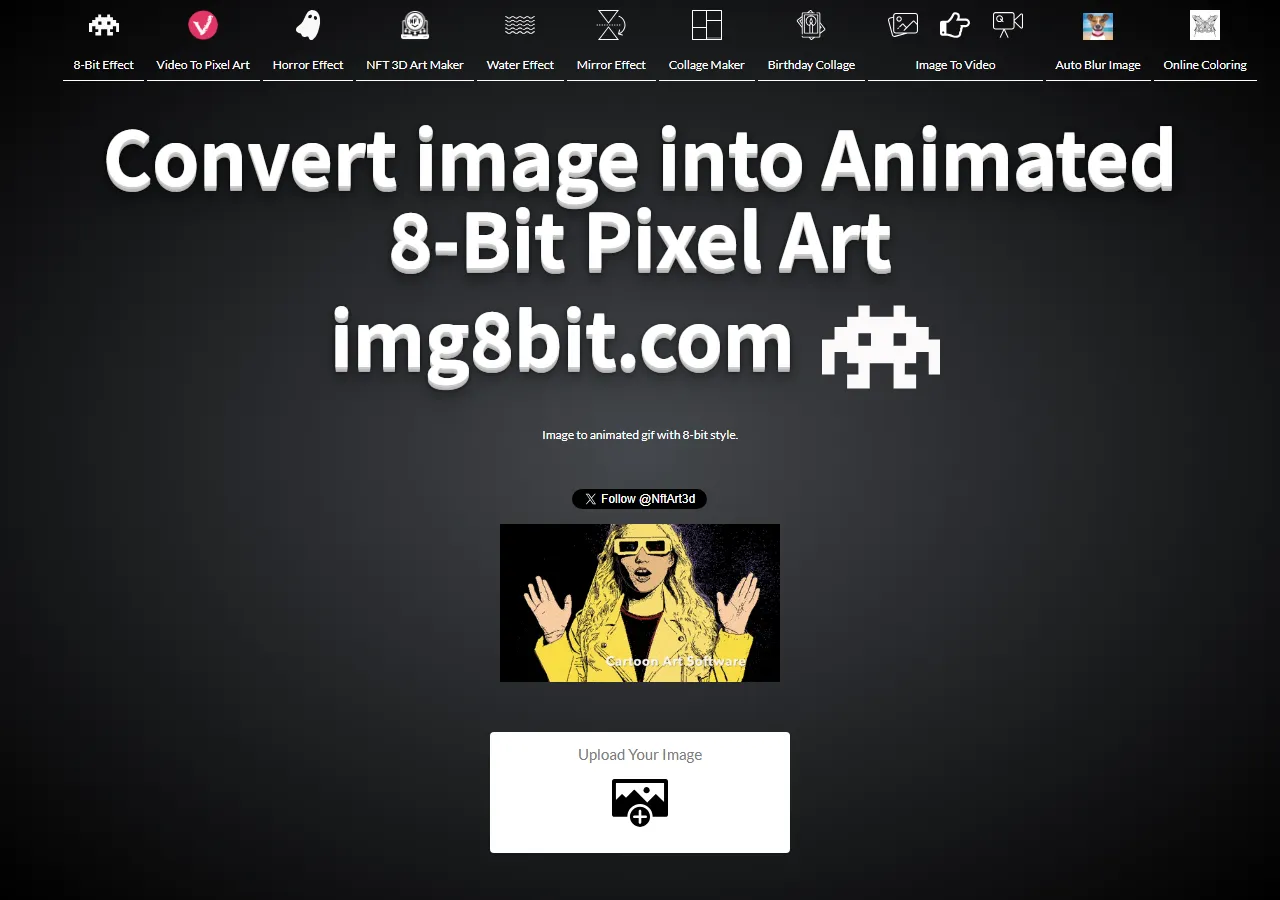
img8bit is a dedicated 8-bit converter: upload and it auto-applies a pixel-art effect, with support for animated GIFs too. Good for a one-click result when you don't want to think about settings.
3. Pixelate with Pixel It
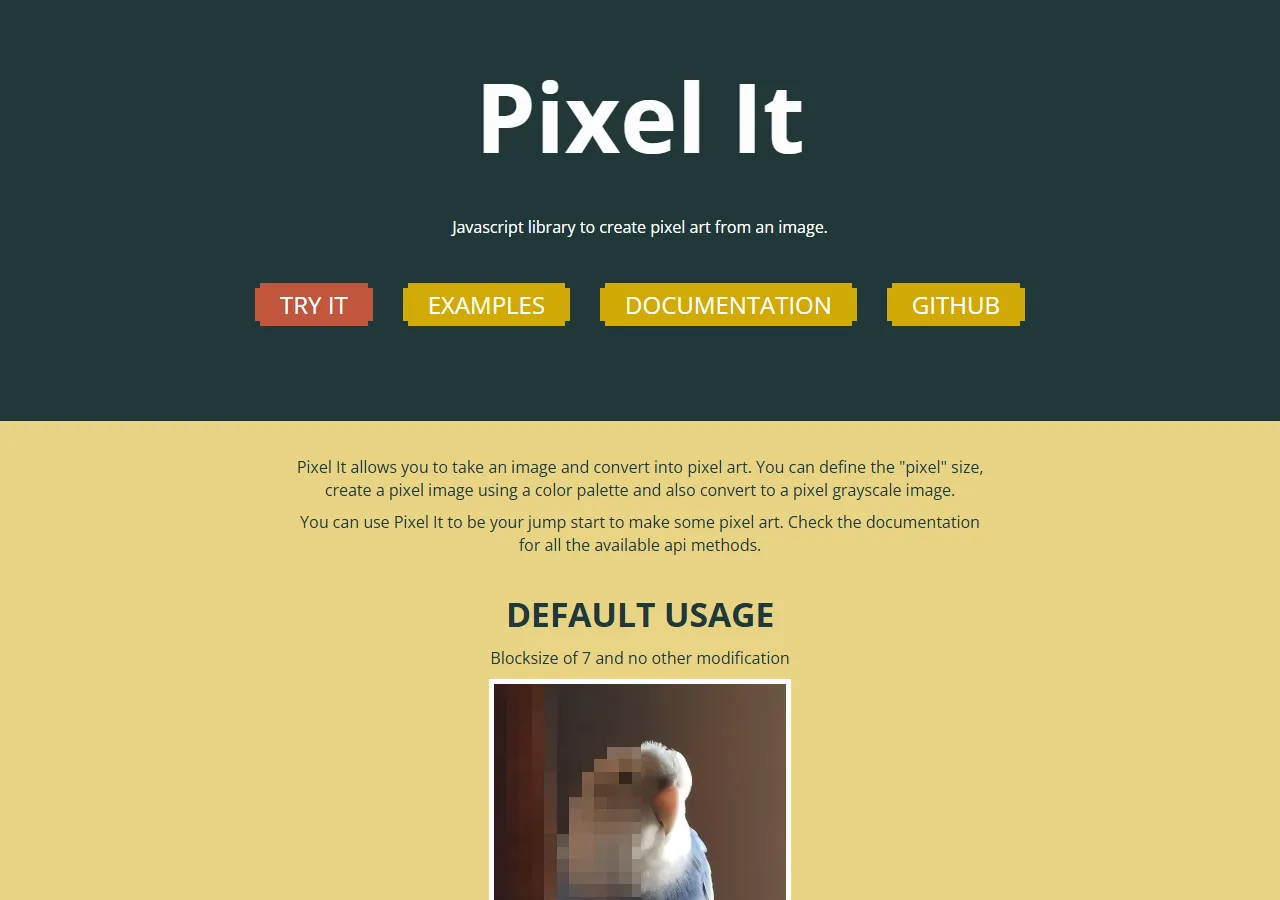
Pixel It is an open, browser-based converter that hands you real control — pixel size, custom color palettes, and dithering. A solid pick if you want to fine-tune the conversion and import palettes from places like Lospec.
4. Generate pixel art with Canva
Canva's AI pixel art generator goes the generative route — describe what you want or feed in a photo and it produces an 8- or 16-bit version. Useful if you'd rather start from a prompt than convert a specific image, though the output is less "faithful retro" and more "AI's idea of retro".
5. Portraits with PixelMe
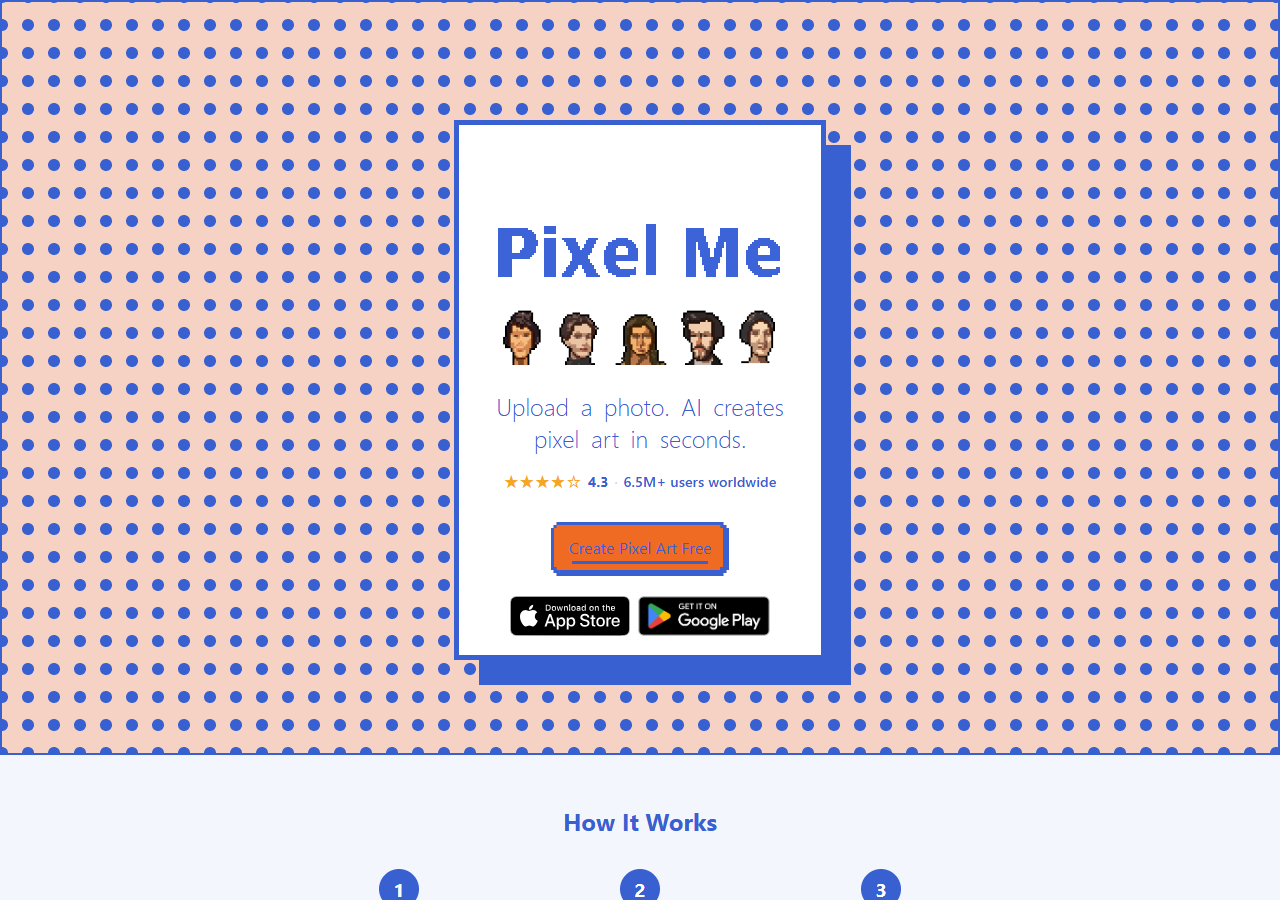
PixelMe specializes in faces: it detects the subject in a portrait and rebuilds it as pixel art, which works far better for selfies than a generic pixelate filter. Worth it specifically for avatar-style output.
How to get an authentic 8-bit look
Use a limited palette. Real 8-bit art used a handful of colors. Clamping to an NES or Game Boy palette is the single biggest factor in selling the look.
Increase the pixel size. Bigger blocks read as lower resolution. Sprites were often 8×8 or 16×16; pick a block size that implies similar density.
Shrink before you pixelate. Reducing the source dimensions first gives a cleaner, more deliberate grid than letting the converter average a huge image.
Try dithering. Dithering uses pixel patterns to fake gradients with a tiny palette — it's the visual signature of 8-bit shading.
Frequently Asked Questions
What is 8-bit pixel art?
8-bit pixel art is artwork built from a low-resolution grid of visible pixels and a small color palette, mimicking the look of 8-bit era consoles like the NES and Game Boy.
How do I make a picture look 8-bit?
Pixelate the image into blocky pixels, then clamp the colors to a limited retro palette. Tools like ours do both in one pass.
What's the difference between 8-bit and 16-bit pixel art?
16-bit art (SNES/Genesis era) uses more colors, smaller pixels, and smoother shading, so it looks more detailed. 8-bit is chunkier and more constrained — the look this guide is after.
What color palette should I use for 8-bit art?
The Game Boy's four greens and the NES's ~54 colors are the classics. You can also grab curated palettes from Lospec for an authentic retro feel.
Conclusion
The trick to convincing 8-bit pixel art isn't the pixelation — it's the palette and the pixel density working together. For a fast, controllable conversion, our Image to 8-Bit tool handles both in one pass; img8bit is great for one click; Pixel It is the pick for full manual control; and Canva or PixelMe cover the generative and portrait cases. Pick the palette first, then pixelate.